App Monetization
Elite Quiz includes multiple monetization options to help you generate revenue from your app.
Configuring Google AdMob
Elite Quiz supports Google AdMob for displaying advertisements within the app:
1. Creating an AdMob Account
- Go to AdMob.com and sign in with your Google account
- Create a new app in the AdMob console (or link to your existing app)
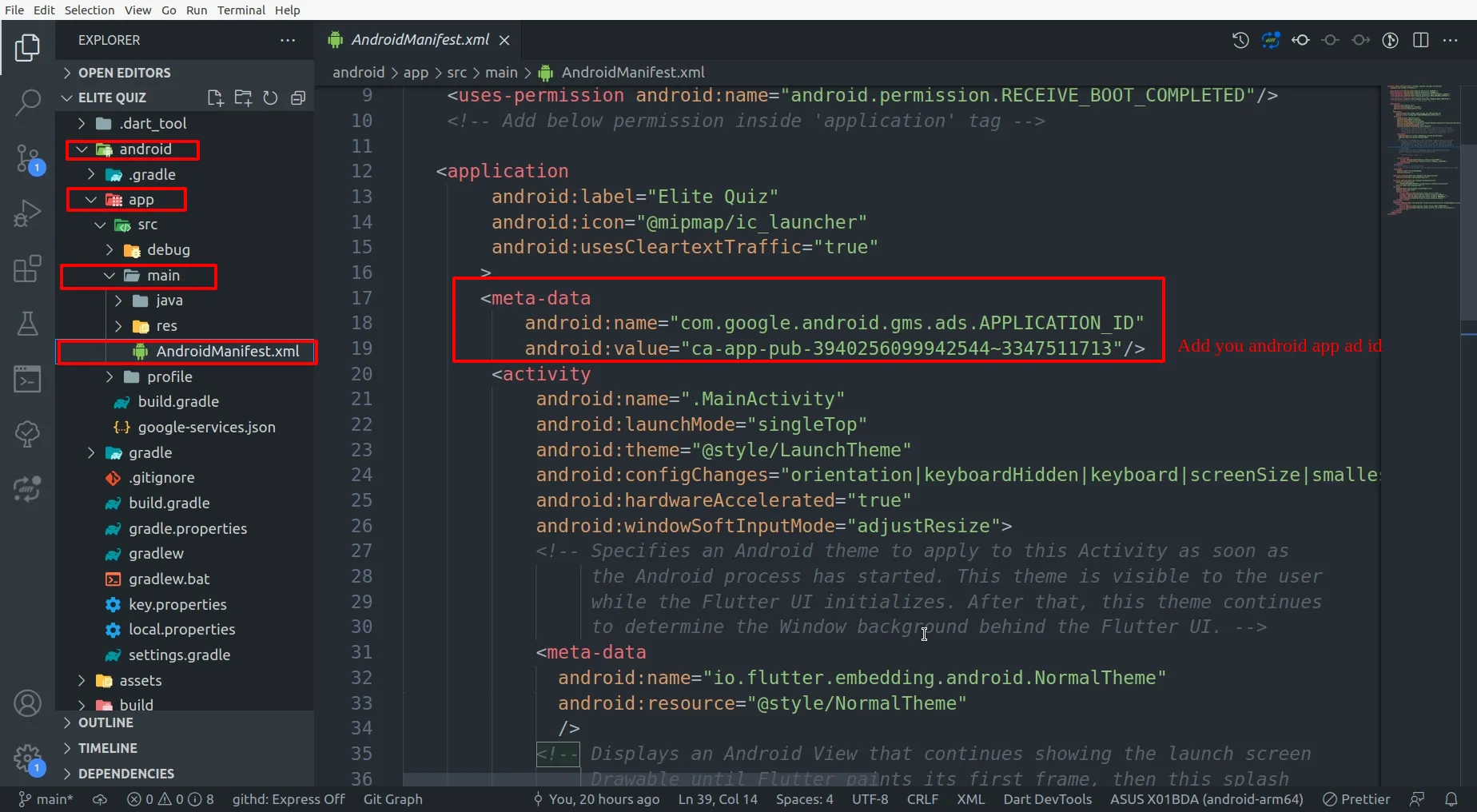
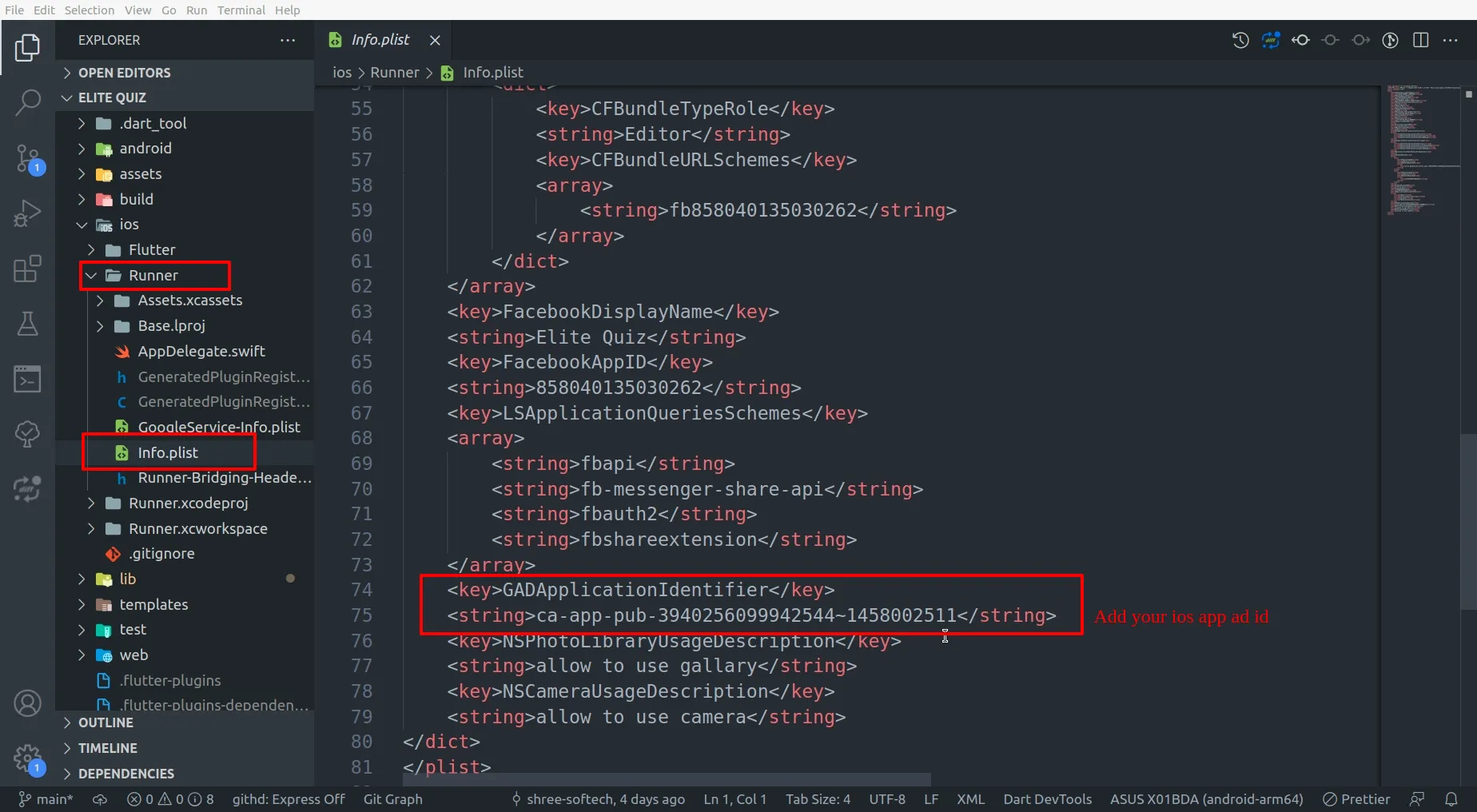
- Get your AdMob App ID for Android and iOS
2. Adding Ad Units
- In the AdMob console, create the following ad units:
- Banner Ad
- Interstitial Ad
- Rewarded Ad
- Note down the ad unit IDs for each ad type
3. Configuring Ad IDs in the App
- Open the file
lib/utils/constant.dart - Look for the ad-related constants and update them with your AdMob IDs:
// Android Ad IDs
static const String androidBannerId = "ca-app-pub-xxxxxxxxxxxxxxxx/xxxxxxxxxx";
static const String androidInterstitialId = "ca-app-pub-xxxxxxxxxxxxxxxx/xxxxxxxxxx";
static const String androidRewardedId = "ca-app-pub-xxxxxxxxxxxxxxxx/xxxxxxxxxx";

// iOS Ad IDs
static const String iosBannerId = "ca-app-pub-xxxxxxxxxxxxxxxx/xxxxxxxxxx";
static const String iosInterstitialId = "ca-app-pub-xxxxxxxxxxxxxxxx/xxxxxxxxxx";
static const String iosRewardedId = "ca-app-pub-xxxxxxxxxxxxxxxx/xxxxxxxxxx";
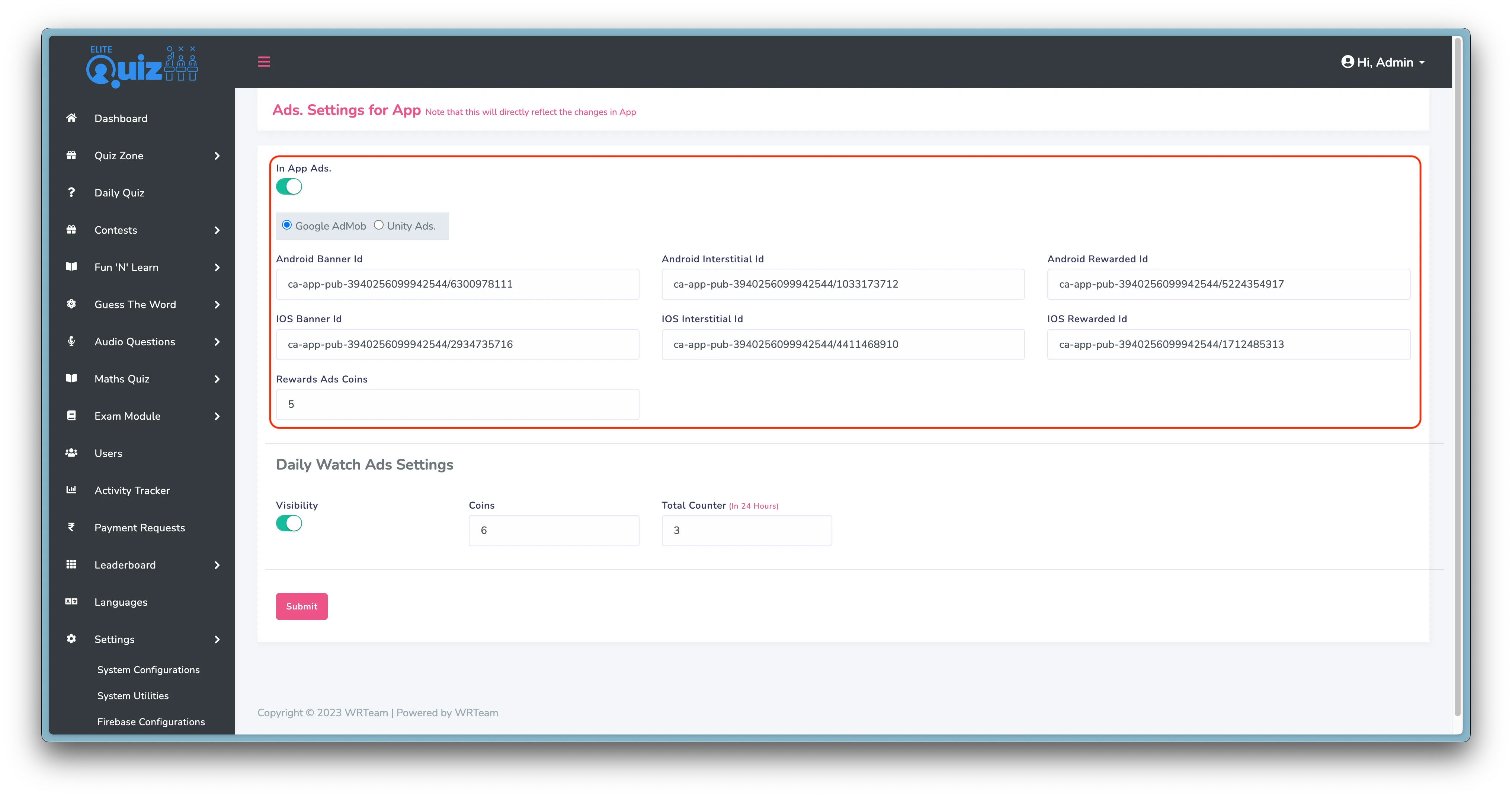
4. Enabling Ads in the App
- In your Admin Panel, go to System Settings
- Find the Google Ads section and enable them
- You can control which ad types are shown (Banner, Interstitial, Rewarded)
Configuring In-App Purchases
Elite Quiz includes a virtual currency (coins) system that can be purchased with real money:
1. Setting Up Google Play In-App Products
- Go to the Google Play Console
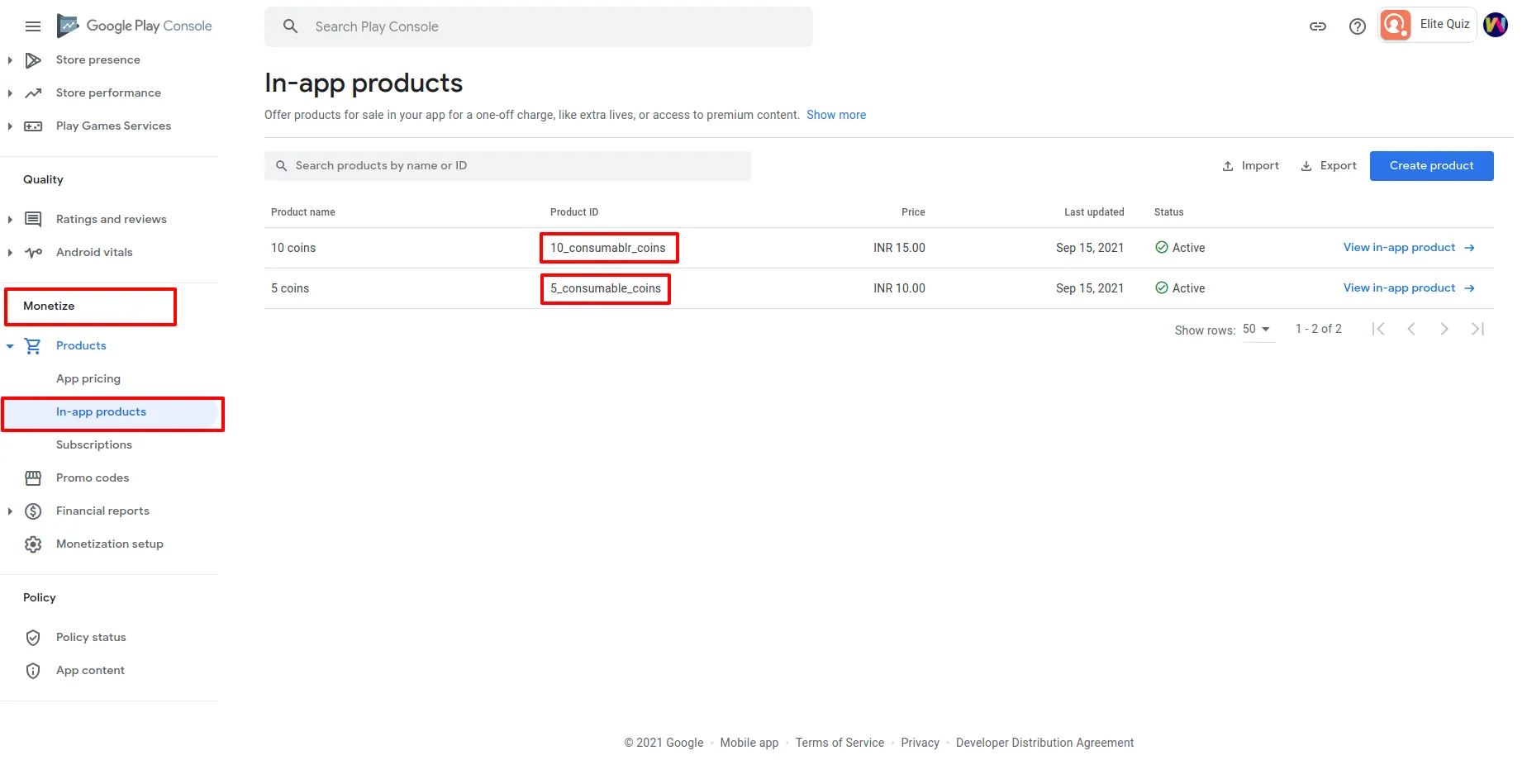
- Select your app and go to "Monetize" > "In-app products"
- Create in-app products for different coin packages (e.g., "100_coins", "500_coins", etc.)
- Set the price and description for each product
2. Setting Up Apple App Store In-App Purchases
- Go to App Store Connect
- Select your app and go to "Features" > "In-App Purchases"
- Create in-app purchases for the same coin packages as Google Play
- Set the price and description for each product
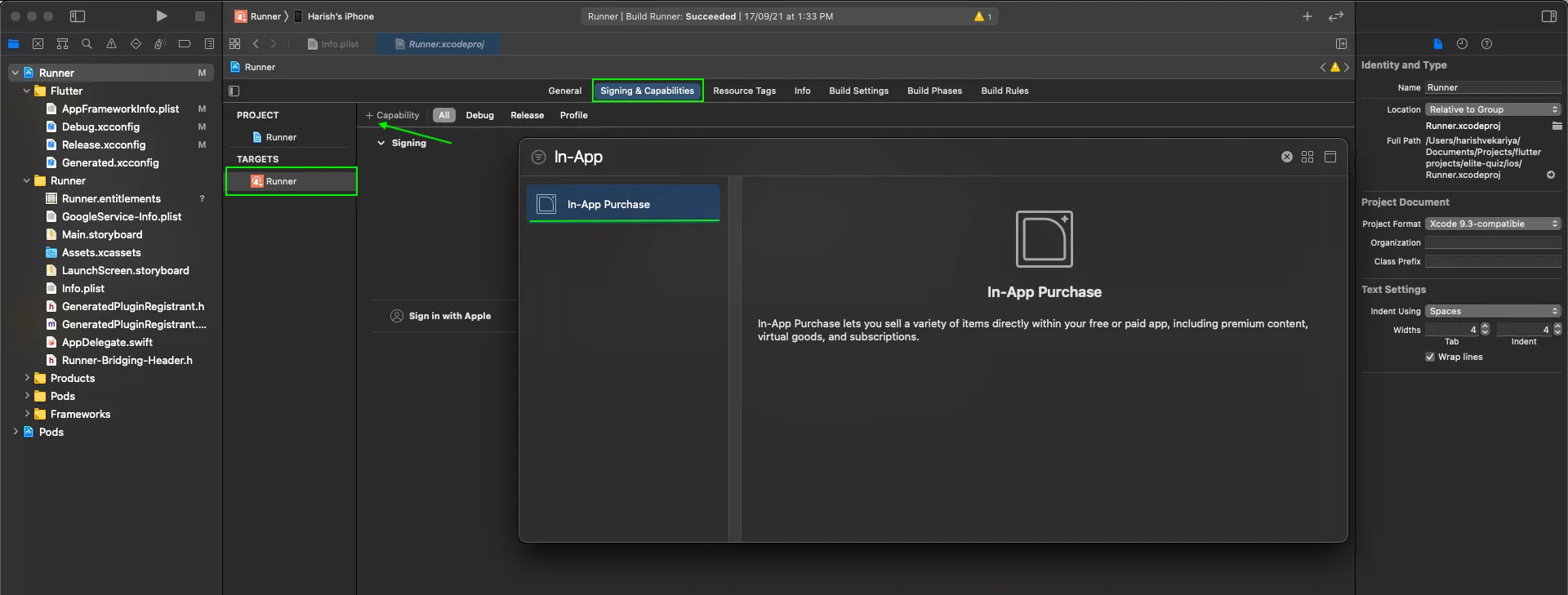
3. Configuring In-App Purchases in the App
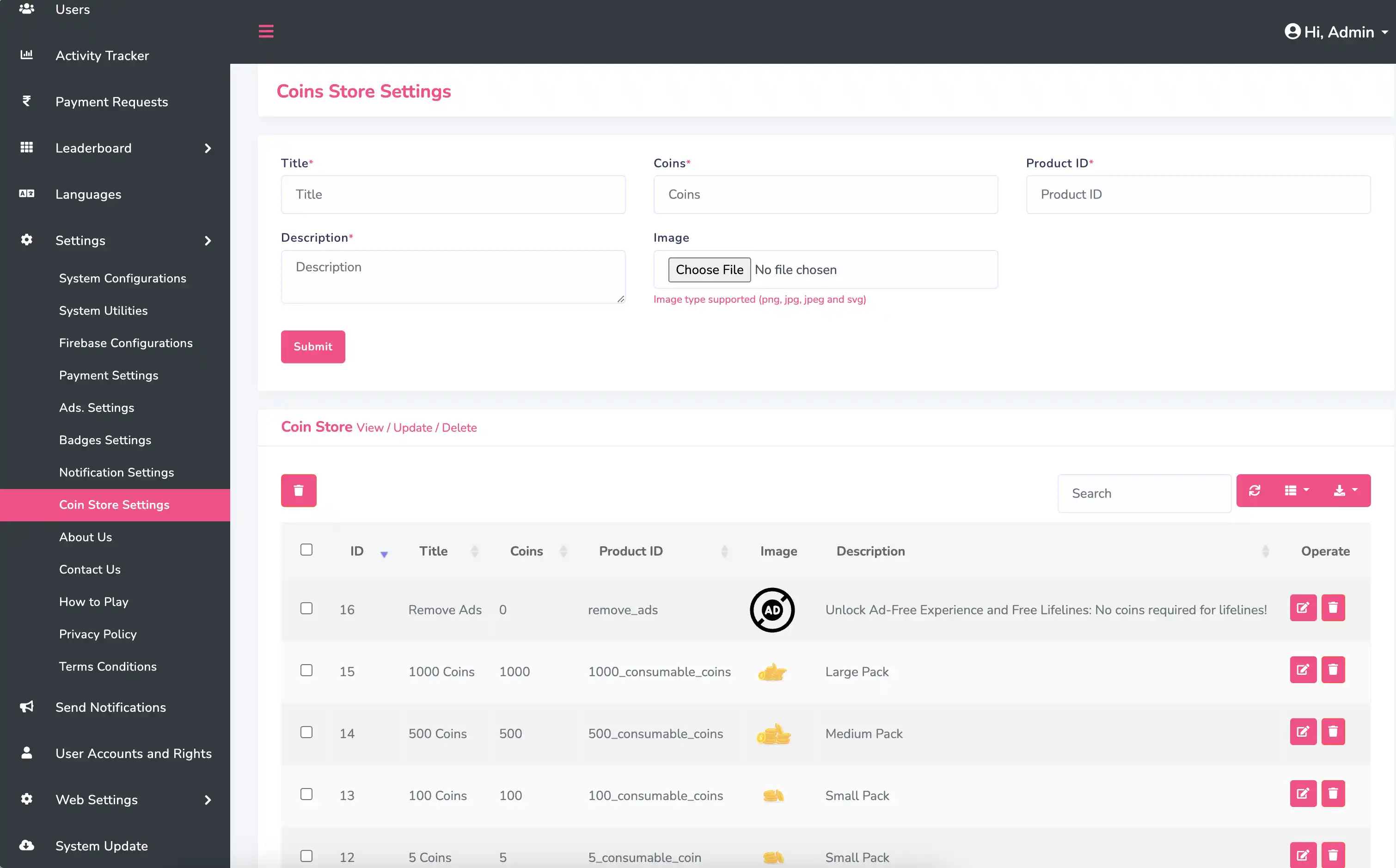
- Make sure the product IDs in the app match the ones you created in the app stores
- Open the file
lib/utils/constant.dart - Look for the in-app purchase constants and update if needed:
static const List<String> productIdList = [
  "100_coins",
  "500_coins",
  "1000_coins",
  "2000_coins",
  "5000_coins",
  "10000_coins",
  "remove_ads"
];
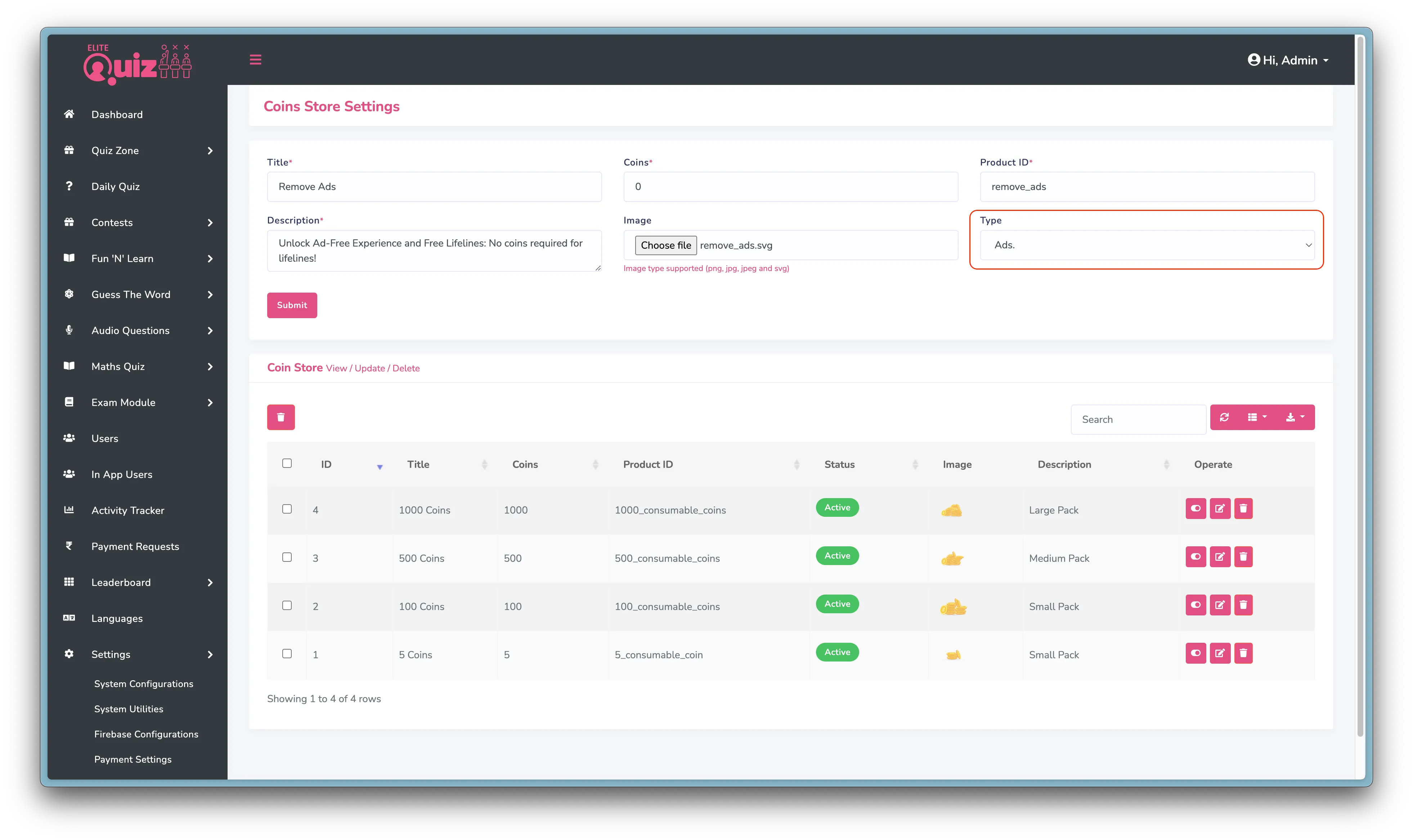
4. Creating "Remove Ads" In-App Purchase
You can also offer a premium feature to remove ads from the app:
- Create a non-consumable in-app product named "remove_ads" in both app stores
- Set an appropriate price for this premium feature
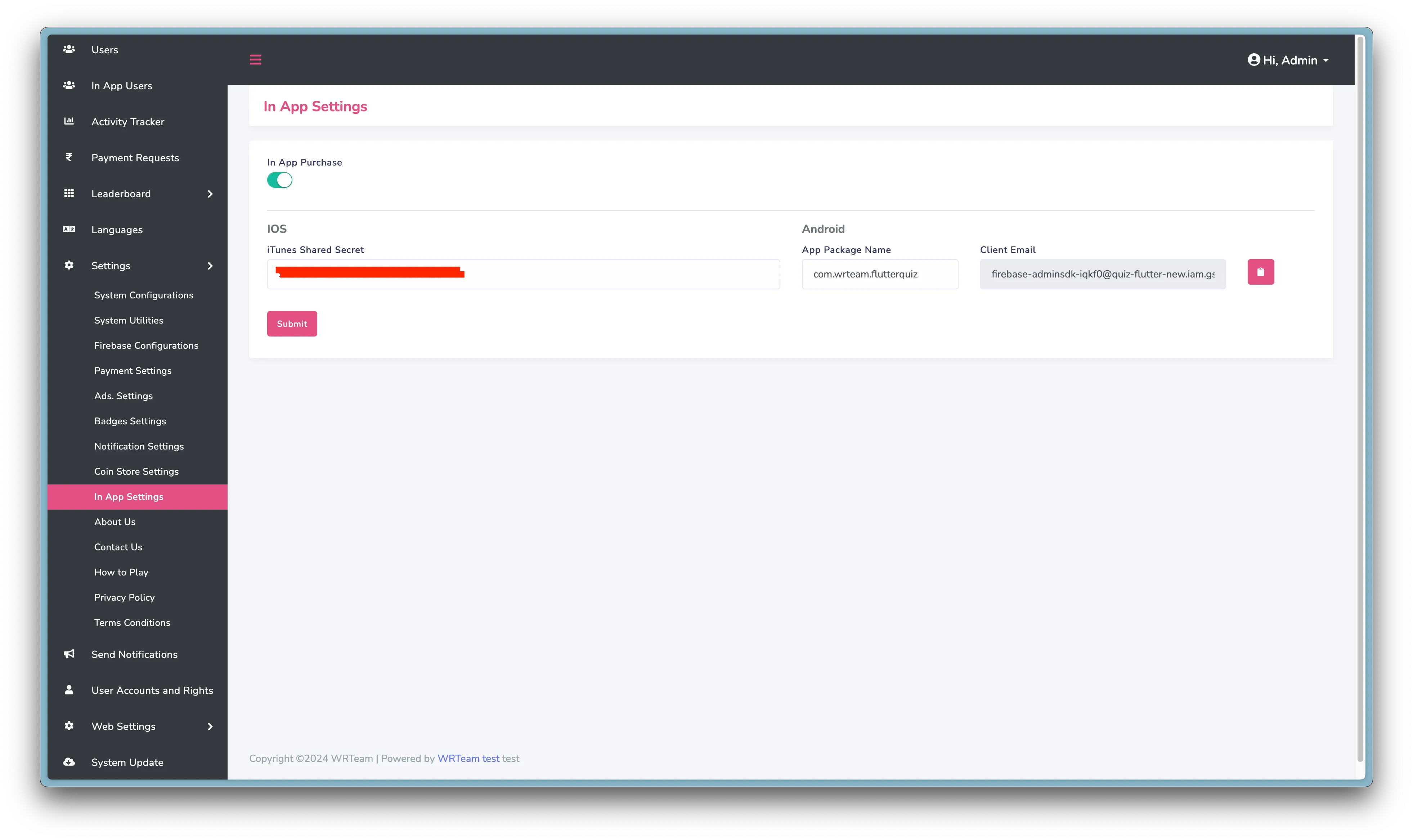
5. Configuring In-App Purchase in Admin Panel
- In your Admin Panel, go to System Settings
- Find the In-App Purchase section and enable it
- Configure the coin packages and their values
Earning Module
Elite Quiz also includes an earning module, allowing users to earn coins by:
- Daily Login Rewards: Users get free coins for logging in daily
- Watching Rewarded Ads: Users can watch ads to earn coins
- Completing Quizzes: Users earn coins for completing quizzes
- Winning Battles: Users earn coins when they win battles
- Referral System: Users can refer friends to earn coins
To configure these settings, go to your Admin Panel > System Settings > Earning System.
Testing Monetization
Before publishing your app:
- Add test device IDs for AdMob testing
- Use Google Play's test accounts for testing in-app purchases
- Use Apple's Sandbox environment for testing iOS in-app purchases
This will allow you to test all monetization features without making real payments.